A Website in Nepal without spending a Paisa!
We are talking about .com.np domain and will be touching NextJS, Vercel, GitHub, and Prismic CMS.

A developer in his work desk developing a website— generated using DALLE3
TL;DR — Quick Steps to a Free Website in Nepal:
- Visit register.com.np and check availability.
- Upload your Citizenship scan and a Cover Letter.
- Use any tools to create website — nowadays AI tools like blackbox, lovable, e.t.c. are go to tools but we will be using NextJs and Prismic to build the website for proper and easy content management.
- Use GitHub Pages or Netlify for free hosting, we will be using Vercel.
- Update Name Servers to link them.
Note for the Reader:
This article is for those who are thinking of creating and publishing a simple personal or lightweight website.
When to move beyond "Free"?
While free global tiers and local .com.np domains are excellent for learning and personal projects, they often come with significant trade-offs for production use. Free tiers (like Vercel’s) frequently impose strict usage limits and lack dedicated support, while certain free local domain configurations can be difficult to manage for high-traffic sites.
Additionally, there are several types of projects that simply is hard to sustain on a free plan:
- E-commerce Platforms: Handling real-time inventory, secure payments, and high concurrent traffic requires dedicated resources and low latency.
- Dynamic Web Apps: Any project with a heavy database or real-time features will quickly hit the execution limits of "serverless" free tiers.
If you find that your project is growing or you require the reliability of local support and the performance of low-latency servers, you might want to look at a professional upgrade. After testing several providers, Kailash Cloud has emerged as a standout choice for those seeking the best web hosting in nepal.
They bridge the gap between "free" and "professional" by offering high-speed NVMe storage and—crucially—seamless local payment integration via eSewa and Khalti. If you're looking for a reliable web hosting in nepal to scale your business or professional projects without the hassle of international credit cards, I highly recommend their plans.
Now, let's get started with out core agenda i.e. creating a Website in Nepal without spending a Paisa!
In this guide, I’ll walk you through the simple steps to create your own personal website in Nepal for free, with a .com.np domain. Forget about the hassles of dealing with trial periods, fees, or lengthy web development process — we’re making it easy for you.
Before we start, kindly note that the guidance won’t be in a step-by-step format, but rather a supportive journey along the path and this process will have a few constraints;
- You should be a Nepalese citizen with valid identification documents.
- Your website’s URL will follow this format: www.fnamelname.com.np, with “fname” representing your first name and “lname” your last name.
- NodeJS installed in your machine.
If you meet these criteria, congratulations — you’re eligible to create your personal or blog site with a .com.np domain without spending a Paisa in Nepal. Don’t be confused by the name of the web development tools mentioned above. We’ll try to cover everything required.
Now, let’s jump to the first step;
Registering the .com.np
To register a .com.np domain for your name, log in to https://register.com.np
Head to https://register.com.np, create an account, and log in. Your main page would look some thing like this.
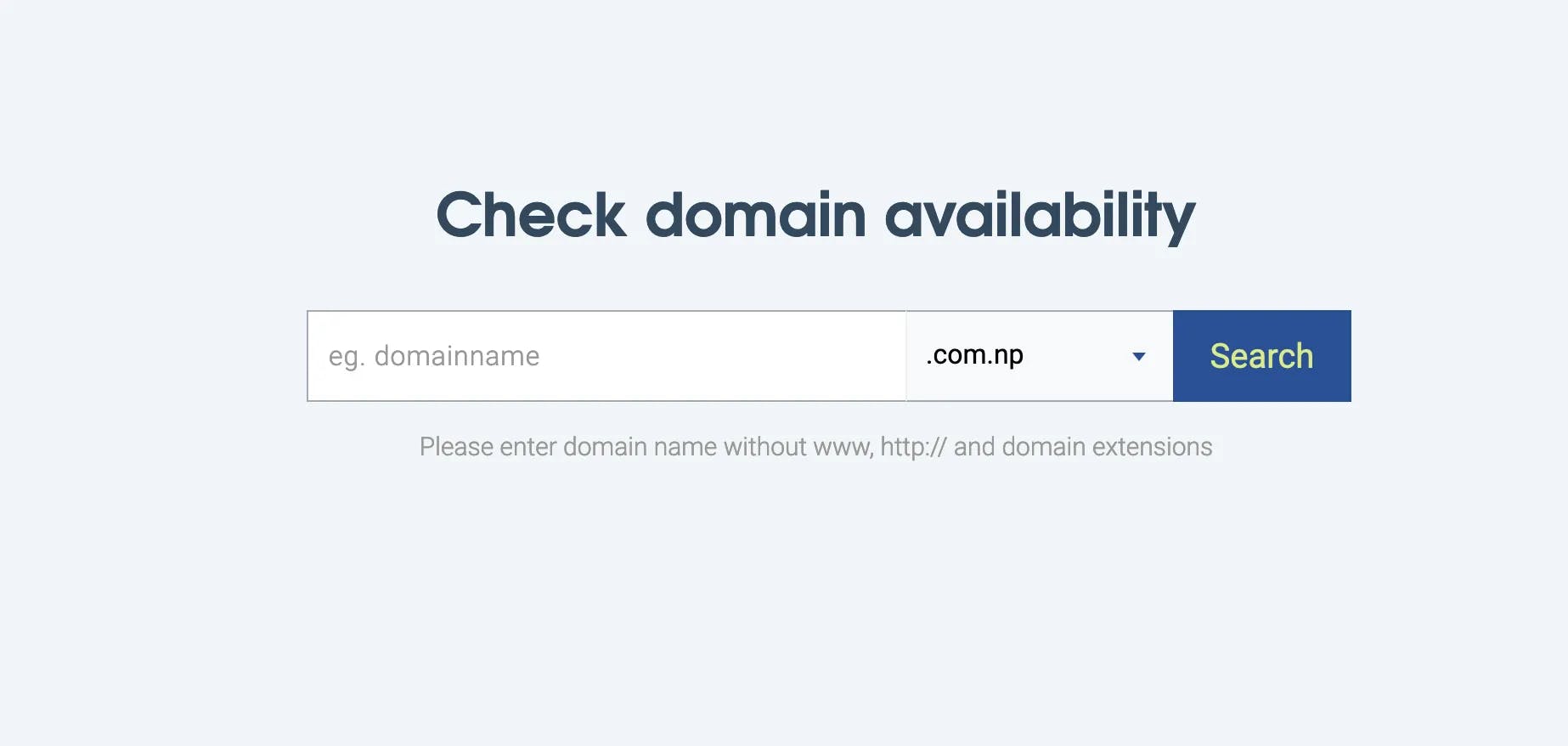
Check if your desired domain name is available, keeping in mind the <firstname><lastname> pattern so that it doesn’t get rejected later. Your name should be same as the name in the document you provide.
We won’t get into the details of the registration process. You must be able to fill up the form without any issue or you can take reference from this article for your help.
One thing to remember though, for the primary name server and the secondary name server, enter ns1.vercel-dns.com and ns2.vercel-dns.com respectively. If you are thinking of using something other than Vercel (if it fits your requirement) then you can use the different server names here.
Verification usually takes 24 hours.
Developing a website
While waiting for domain verification, let’s start developing our website. We’ll use NextJS for its simplicity, but feel free to choose other technologies. We’ll also leverage Prismic CMS for an easy start. Believe me, this is going to be easy and simple than you think. Probably, much easier than the tech stack you’re thinking of using to build it.
We can create a Prismic account at this point, which is a must, but we can also do it later while installing one of the templates provided by Prismic.
To install the portfolio template, provided by Prismic, run this command:
npx degit https://github.com/prismicio-community/nextjs-starter-prismic-multi-page nextjs-portfolio
cd nextjs-portfolio
npx @slicemachine/init@latest
This command will copy the Prismic repository to your local machine inside nextjs-portfolio folder and set up the *Slice machine for you. With this command you will be prompted to create a new account(if you haven’t already) and also a new project in Prismic.
*Slice machine is a tool by Prismic that creates template of a document which will be used by the CMS.
We won’t focus on making any change to the document templates here. But, to change the content(from CMS) you can run;
npm run devThis command will run two servers:
- one with your new website in a development environment
- one with Slice Machine (we won’t dive into this)
Open your Prismic project in Prismic Dasboard and set up the preview for localhost, one with your new website in a development environment. This will help you verify your changes before publishing the content.
And, for that;
- Find settings icon at the right bottom of the dashboard.
- Select previews and create a new preview for your development environment.
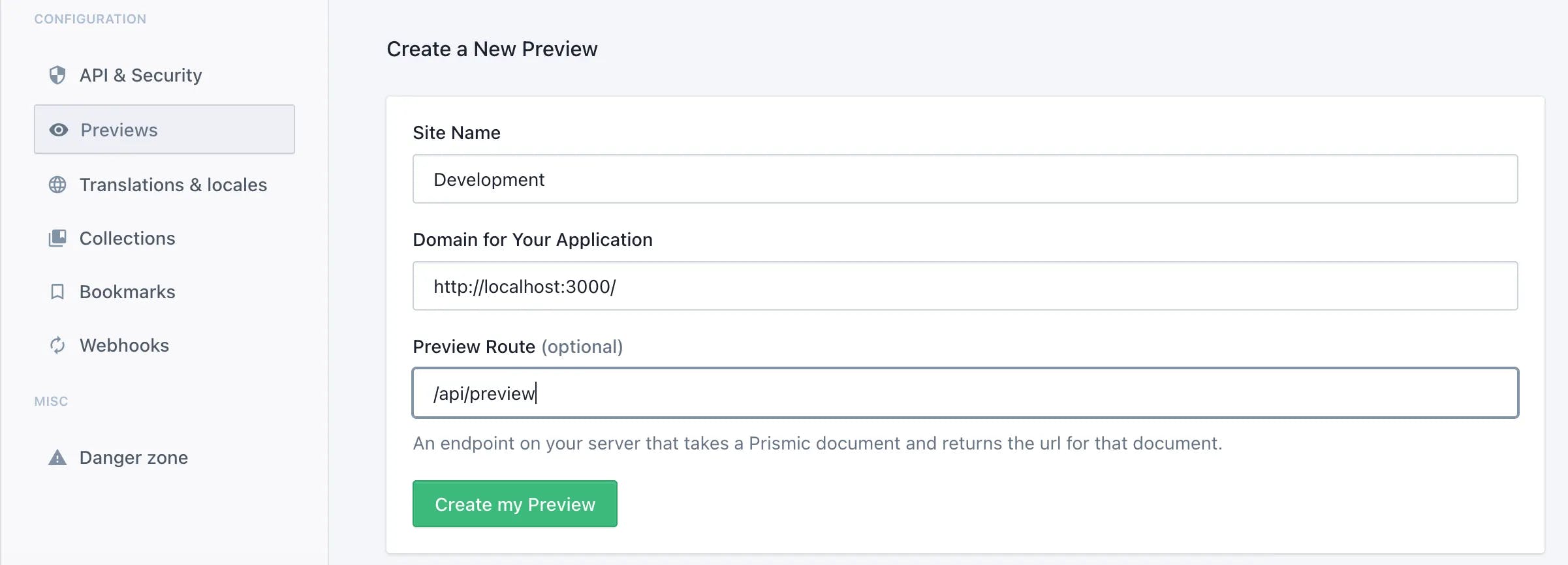
Now, you can change content of a document, save it, preview it and publish it if everything looks good to you.
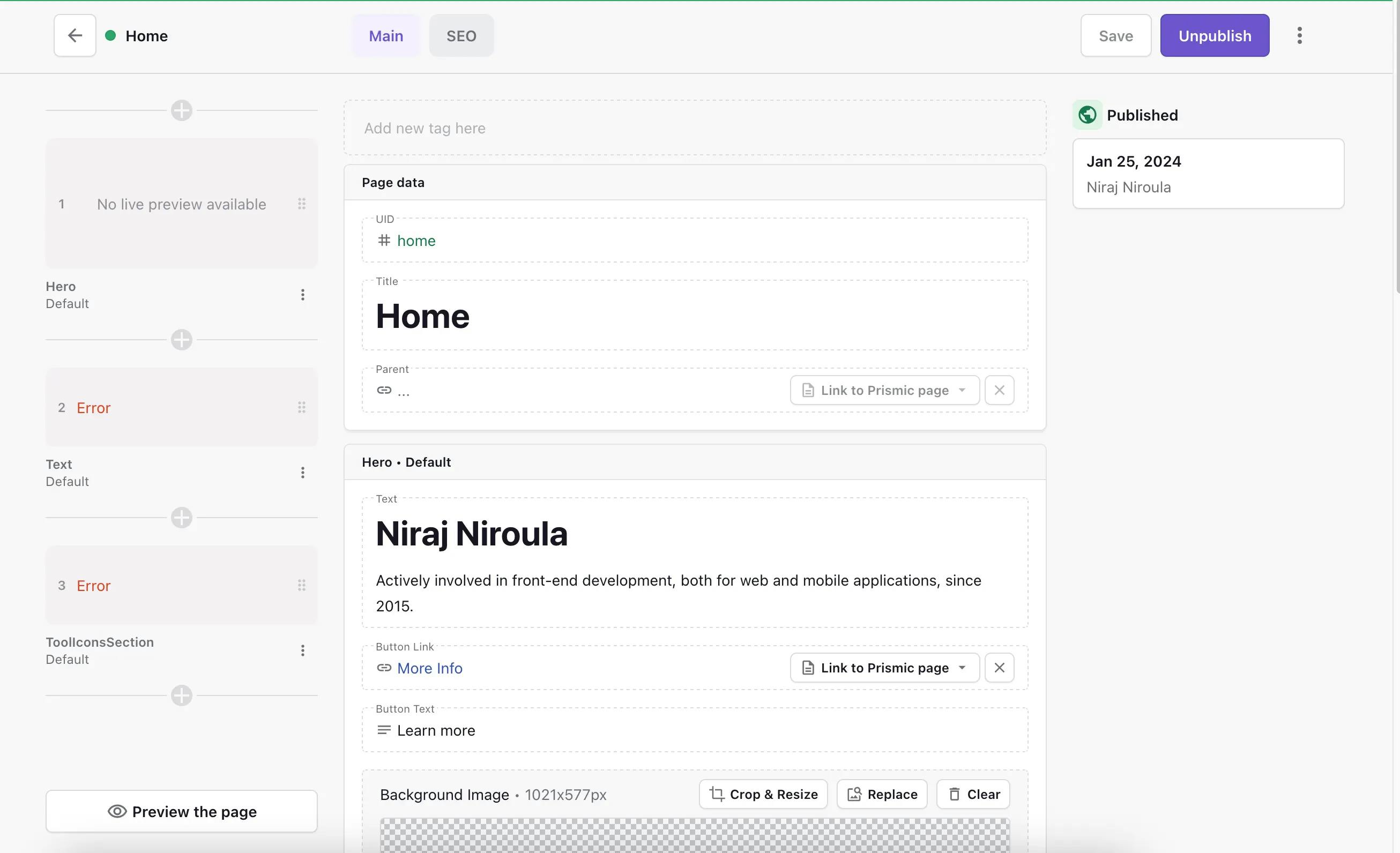
If you want to learn more on how Prismic works, follow their documents.
Also, in order to make the deployment automatic consider pushing the source code to GitHub.
Deploying the website
Once your domain is verified and your website is developed, it’s time to deploy. We’ve chosen Vercel for its NextJS support.
First, go to https://vercel.com/signup to create a Vercel account. Choose Continue with GitHub and go through the sign up process. This will help you with the project import from GitHub later.
On creating new Project, you can now import your project from your Github repository that you pushed earlier.
After this you should be able to Deploy the web app in the default url provided by Vercel which looks something like example.vercel.app.
For the finishing touch, add your custom .com.np domain by navigating to the Domain section in your project settings on Vercel.
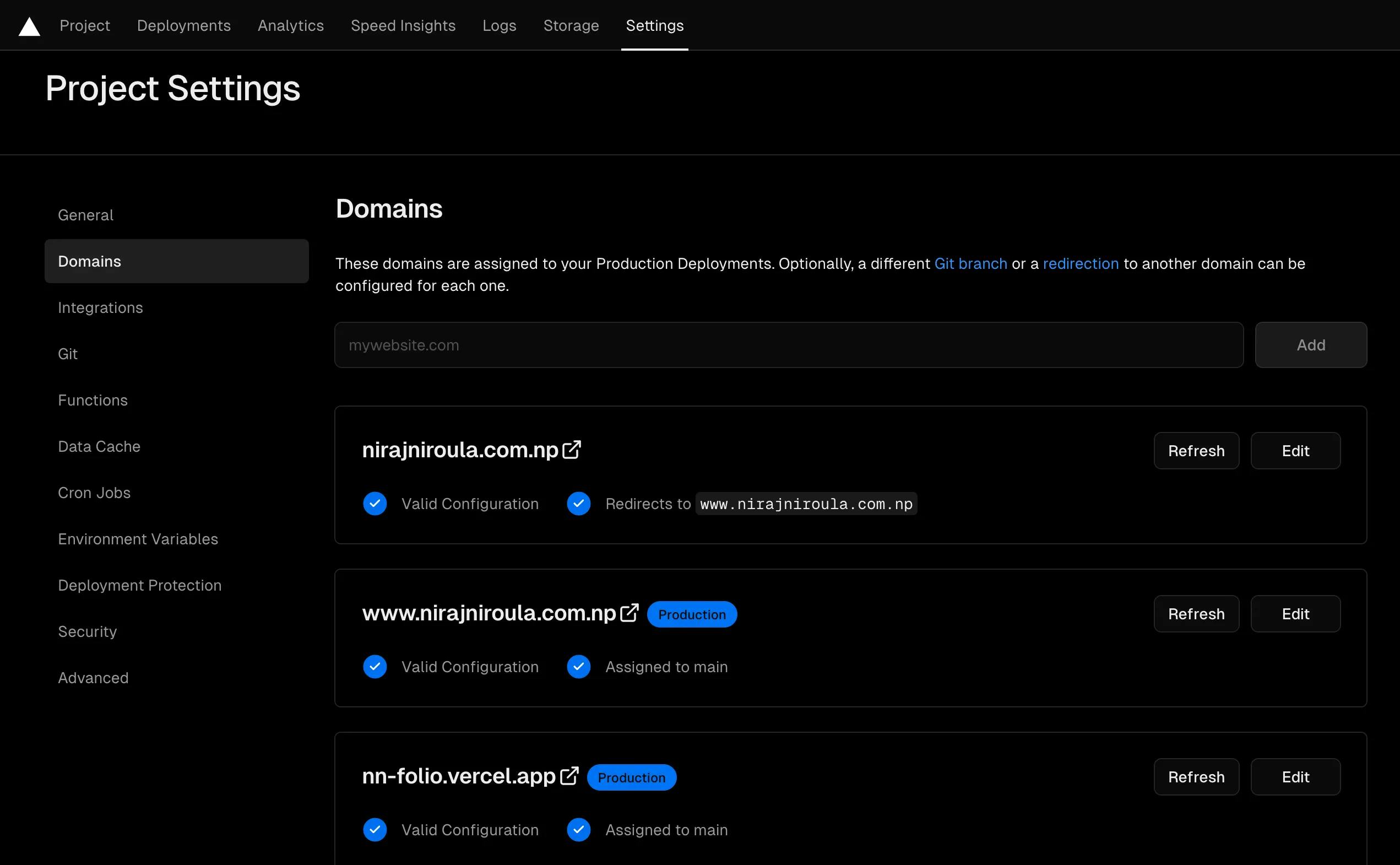
Enter the domain you registered earlier, and voila!
Let me know if your personal website is now up and running.
Happy creating!